⚡ Instant Delivery — Genuine Microsoft Product Keys Emailed in Seconds

Volume Licences | Bulk orders

Windows Server 2025 Standard Download, Install & Activation Guide

The Windows Server 2025 Standard download, installation, and activation process is simpler than it looks — even for a first server setup. Windows Server 2025 is Microsoft’s latest server operating system, built for modern IT infrastructure with stronger security, faster storage, and deeper hybrid cloud integration. This guide covers the full journey: system requirements, downloading the ISO, creating bootable media, installing the OS, activating with your product key, and converting the 180-day evaluation to a full license if you’ve already installed it.

Already have your key? If you purchased from Flixeasy, your delivery email includes both your Windows Server 2025 Standard product key and a download link for the installation ISO — use that link and jump to the installation step. Need a key? See our Windows Server 2025 keys with instant email delivery.

Step 1 — Check the system requirements

ComponentMinimum requirement
Processor1.4 GHz 64-bit processor with x64 instruction set support
RAM512 MB minimum (2 GB+ recommended, ECC for production)
Storage32 GB minimum free space
FirmwareUEFI with Secure Boot; TPM 2.0 recommended
NetworkGigabit Ethernet adapter
USB drive8 GB minimum for installation media

These are bare minimums — size the hardware to the roles you’ll run. Full details are on Microsoft’s official hardware requirements page, and if you’re weighing Standard against Datacenter, Microsoft’s edition comparison breaks down the differences.

Step 2 — Download Windows Server 2025 Standard

Two options for the Windows Server 2025 ISO download:

  • Flixeasy customers: use the download link in your product key delivery email — it takes you straight to the correct installation image for your license.
  • From Microsoft: go to the official Windows Server 2025 download page, select Windows Server 2025, choose your language, and download the ISO. This page provides the 180-day evaluation version — easily converted to the full version with your product key after installation.

Only download Windows Server from Microsoft or the link in your delivery email. Unofficial ISOs and modified installers are a major malware risk on server systems.

Step 3 — Create the installation media

Write the ISO to a USB drive of at least 8 GB (it will be erased). The easiest tool is Rufus — our guide to creating a bootable USB to install Windows walks through it with screenshots; the process is identical for Windows Server. Select the Server 2025 ISO, keep the GPT/UEFI defaults, and click Start.

Installing in a virtual machine (Hyper-V, VMware, VirtualBox, Proxmox)? Skip the USB — attach the ISO directly to the VM as a virtual DVD drive and boot from it.

Step 4 — Install Windows Server 2025 Standard

  1. Plug the bootable USB into the server and power it on.
  2. Open the boot menu (commonly F12, F10, F2 or Esc) and boot from the USB.
  3. Choose your language, time, and keyboard settings, then click Install now.
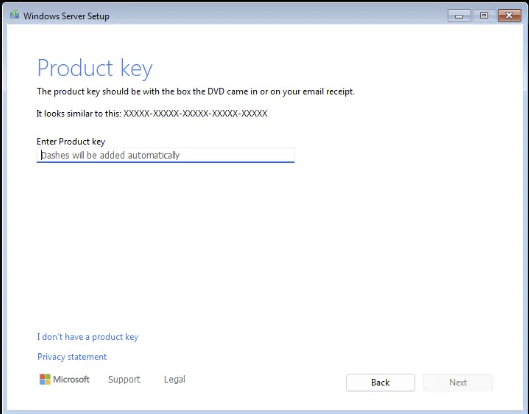
  4. Enter your product key when prompted, or select I don’t have a product key to activate later.
enter windows server 2025 standard download product key during installation
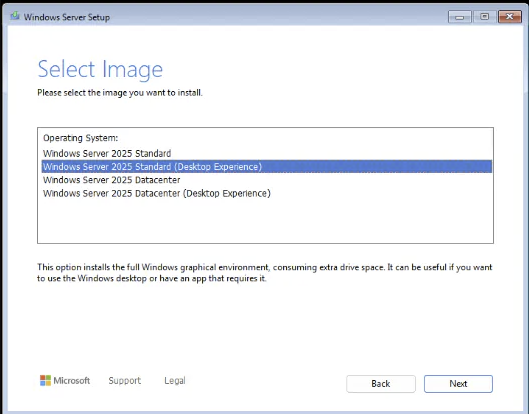
  1. Select Windows Server 2025 Standard (Desktop Experience) for the GUI version — plain “Standard” is the command-line-only Server Core.
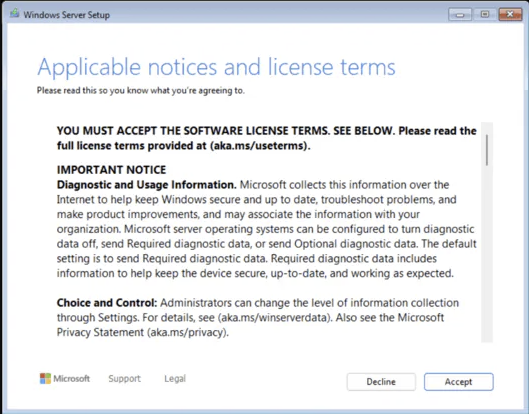
  1. Accept the license terms and choose Custom: Install Windows only for a clean installation.
Accept the license terms and choose Custom: Install Windows only for a clean installation.
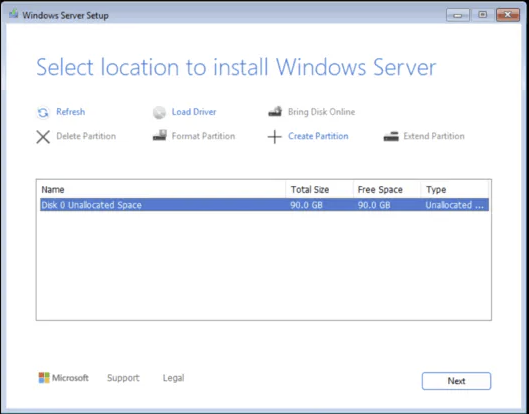
  1. Select the target disk (format it if needed) and click Next — files copy and the server restarts several times.
Select installation disk for Windows Server 2025
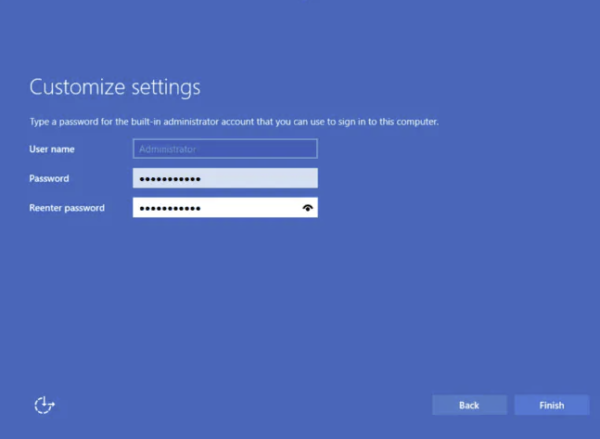
  1. Set a strong Administrator password, then press Ctrl + Alt + Delete and sign in.
Set Administrator password after Windows Server 2025 installation
After first login: configure network settings, install drivers, and run Windows Update before deploying any roles.

Step 5 — Activate Windows Server 2025 Standard

Activate with the genuine product key from your Flixeasy delivery email — either through Settings or the command line:

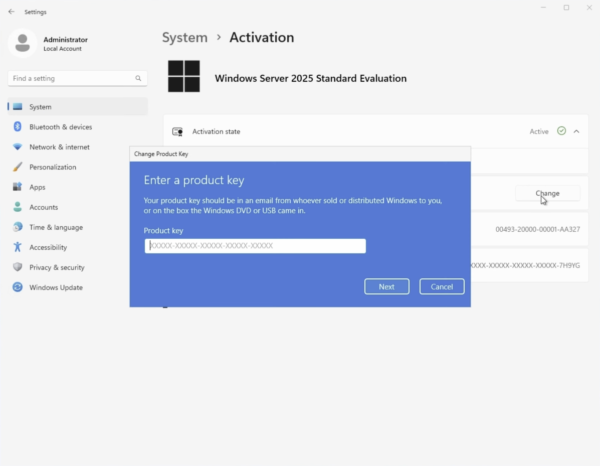
Via Settings: go to Settings → System → Activation, click Change product key, enter your 25-character key, and follow the prompts (internet connection required).

Via Command Prompt (run as administrator):
  1. Install the key:
    slmgr /ipk XXXXX-XXXXX-XXXXX-XXXXX-XXXXX
  2. Activate online:
    slmgr /ato
  3. Verify:
    slmgr /dlv
    The license status should read Licensed — permanent, with no expiry.

Installed the evaluation version? Convert it to the full version

If you installed from Microsoft’s download page and see a 180-day time limit, there’s no need to reinstall — convert the evaluation in place with your product key:
  1. Open Command Prompt as administrator.
  2. Optionally, check the available target editions:
    DISM /online /Get-TargetEditions
  3. Run the conversion with your key:
    DISM /online /Set-Edition:ServerStandard /ProductKey:XXXXX-XXXXX-XXXXX-XXXXX-XXXXX /AcceptEula
  4. The server reboots twice; afterwards, verify with slmgr /dlv — the countdown is gone and the server is fully licensed.
Convert before promoting the server to a domain controller — DISM can’t change the edition of a DC. If it’s already one, demote it, convert, then promote again.

Post-activation recommendations

  • Add roles and features through Server Manager — Active Directory, DNS, DHCP, file services, or Hyper-V as your infrastructure requires.
  • Enable automatic updates or set a patching schedule — server security depends on it.
  • Harden the basics: configure the firewall, enable Microsoft Defender, and schedule regular backups before the server goes into production.

Frequently asked questions

Is Windows Server 2025 a free upgrade?

No — like every major version, it requires a new license. You can buy a Windows Server 2025 Standard product key from Flixeasy at a fraction of retail price.

Can I download Windows Server 2025 for free?

Microsoft offers a free 180-day evaluation on its official download page. It’s fully functional, and once you have a product key it converts directly to the full version with the DISM command above — nothing you configured is lost.

What’s new in Windows Server 2025?

Highlights include hotpatching (fewer reboots for updates), improved Active Directory security, NVMe storage performance gains, SMB over QUIC for secure remote file access, and next-gen Hyper-V with GPU partitioning.

Is Windows Server 2025 a one-time purchase?

Yes — the license is perpetual. Pay once, use it for the server’s lifetime, no subscription or renewal fees.

Can I install Windows Server 2025 on a virtual machine?

Yes — Hyper-V, VMware, VirtualBox, and Proxmox all support it. Standard edition licensing covers up to two virtual machines on licensed hardware; for unlimited VMs, look at Windows Server 2025 Datacenter.

Get your Windows Server 2025 Standard key

Genuine license with instant email delivery, ISO download link included, lifetime activation and no subscription.

Shop Windows Server 2025 keys

Browser Our Products Cateregories

Our Best Selling Products

Your Cart (2)
Empty Cart Your Cart is Empty!

It looks like you haven't added any items to your cart yet.

Browse Products
Subtotal
Shipping & taxes calculated at checkout.
$22.98
Checkout Now