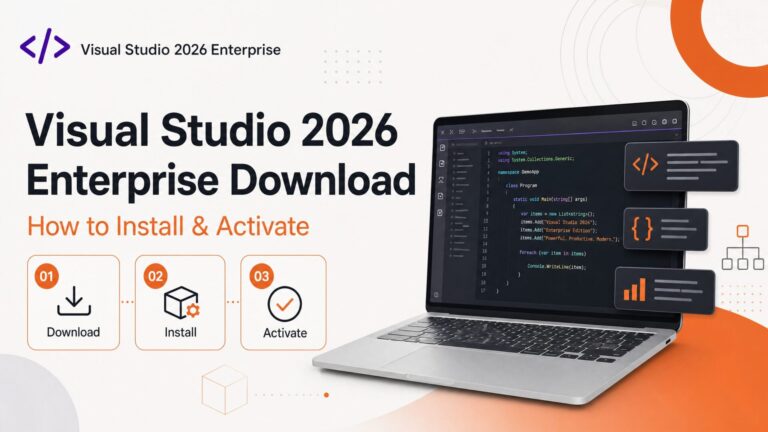
Microsoft Visual Studio 2026 Enterprise is Microsoft’s most advanced integrated development environment — built for professional developers and teams working on large-scale applications, with advanced debugging and diagnostics, AI-assisted productivity, architecture validation, and full DevOps integration. In this guide, we’ll show you the complete Visual Studio 2026 Enterprise download, installation, and activation process, step by step.
Purchased your key from Flixeasy? Your delivery email contains everything you need — the download link and these installation steps are sent again in the delivery email, so you can set up directly from your inbox. Don’t have a key yet? Browse our Visual Studio product keys — instant email delivery, one-time purchase, no subscription.
System requirements
| Requirement | Details |
|---|
| Operating system | Windows 10 or Windows 11 (64-bit) |
| Processor | 1.8 GHz or faster, quad-core recommended |
| RAM | 4 GB minimum — 16 GB recommended for real projects |
| Disk space | Up to 210 GB depending on workloads installed (SSD strongly recommended) |
| Display | 1366 × 768 minimum, Full HD or higher recommended |
| Internet | Broadband connection for download and installation |
Full details are in Microsoft’s official Visual Studio release documentation.
Step 1 — Download the Visual Studio 2026 installer
- Use the download link from your Flixeasy delivery email, or go to the official Microsoft Visual Studio downloads page.
- Select Visual Studio 2026 Enterprise.
- Click Download — you’ll get a small bootstrapper file named
VisualStudioSetup.exe.
Step 2 — Run the installer and choose your workloads
- Double-click
VisualStudioSetup.exe — the Visual Studio Installer opens and updates itself automatically. - Select the workloads you need. Workloads are bundles of tools for specific kinds of development, and you can add or remove them later at any time:
- .NET desktop development — WPF, Windows Forms, console apps
- ASP.NET and web development — web apps and APIs
- Desktop development with C++ — native Windows applications
- Python development — scripting, data work, web backends
- Azure development — cloud-native apps and services
- Data science and analytics — analytical tooling
Only install the workloads you actually need — each one adds gigabytes to the footprint. A typical .NET + web setup takes around 20–30 GB rather than the full 210 GB.
Step 3 — Complete the installation
- Click Install and let the installer download and configure the selected components — anywhere from 10 minutes to an hour depending on workloads and connection speed.
- When it finishes, launch Visual Studio 2026 Enterprise from the Start menu.
Step 4 — Activate Visual Studio 2026 Enterprise
- Open Visual Studio 2026 Enterprise.
- If prompted to sign in with a Microsoft account, you can do so or skip it — a product key activation doesn’t require an account.
- Go to Help → Register Product.
- Click Unlock with a Product Key and enter the 25-character product key from your Flixeasy delivery email.
- Click Apply and restart Visual Studio.
Verify activation: go to Help → About Microsoft Visual Studio — it should show Visual Studio 2026 Enterprise with a licensed status. That’s it: a one-time activation with no subscription and no expiry.
Frequently asked questions
What’s the difference between Visual Studio Professional and Enterprise?
Enterprise adds advanced capabilities for large teams: live dependency validation, architecture layer diagrams, IntelliTest, Microsoft Fakes, code coverage, and Load Testing tools. Professional covers the full IDE, debugging, IntelliSense, and Git integration — plenty for individual developers and small teams. Compare both on our Visual Studio keys page.
Is the Visual Studio 2026 Enterprise license a subscription?
Not when purchased as a product key — it’s a one-time purchase with lifetime activation. No monthly fees, no renewal.
Do I need a Microsoft account to activate it?
No — activating with a product key through Help → Register Product works without signing in. An account is only needed if you want settings sync or Azure integration.
Can I change workloads after installation?
Yes — open the Visual Studio Installer any time, click Modify, and add or remove workloads without reinstalling.
Does the key work on macOS or Linux?
No — Visual Studio 2026 Enterprise is Windows-only. For cross-platform editing, Visual Studio Code is free but is a different, lighter product.
What if my product key doesn’t activate?
Double-check the edition (an Enterprise key won’t unlock Professional and vice versa) and each character of the key. If it still fails, contact Flixeasy support via the contact page — every key is covered by our money-back guarantee.
Get your Visual Studio product key
Genuine Visual Studio license keys with instant email delivery — download link and installation steps included in every order. One-time purchase, no subscription.
Shop Visual Studio keys