⚡ Instant Delivery — Genuine Microsoft Product Keys Emailed in Seconds

Volume Licences | Bulk orders

How to Download, Install & Activate Microsoft Office with a Bind Key (Windows & Mac)

This guide will help you download, install, and activate Microsoft Office with a bind key on both Windows and Mac systems. A bind key links your license to your Microsoft account instead of a single machine — so you can reinstall Office any time by simply signing in. The steps below apply to Microsoft Office versions 2024, 2021, 2019, and 2016.

Don’t have a key yet? You can buy a genuine Microsoft Office product key from Flixeasy with instant email delivery, lifetime activation, and no subscription.

What you’ll need

  • A Microsoft Office bind key — for example an Office 2024 product key or, for Apple users, an Office for Mac key. Flixeasy delivers keys by email within seconds.
  • A Microsoft account — free to create if you don’t have one.
  • An internet connection for the download and first activation.

Part 1 — Bind the key to your Microsoft account

Step 1 — Open the Microsoft services page

Go to the official Microsoft account page at account.microsoft.com/services.

Step 2 — Sign in

Sign in to your Microsoft account, or create one if needed. This account will hold your Office license permanently, so use one you’ll keep.

Step 3 — Start the redemption

In the Services & subscriptions section, select “Have a prepaid product key? Start using your subscription”.
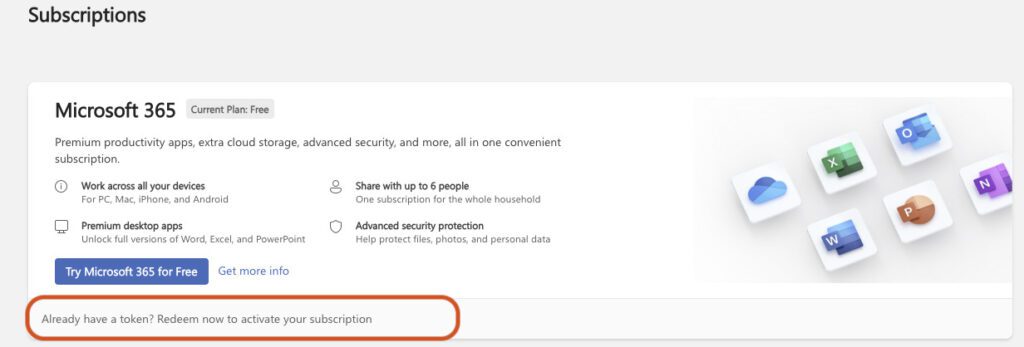

1 activate office bind key redeem

Step 4 — Click “Get started”

2 activate office bind key redeem

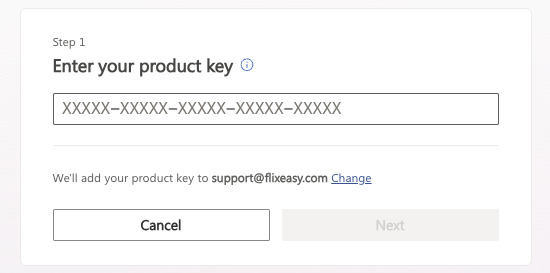
Step 5 — Enter your product key

Type the 25-character key from your Flixeasy delivery email and click Next.

3 activate office bind key redeem

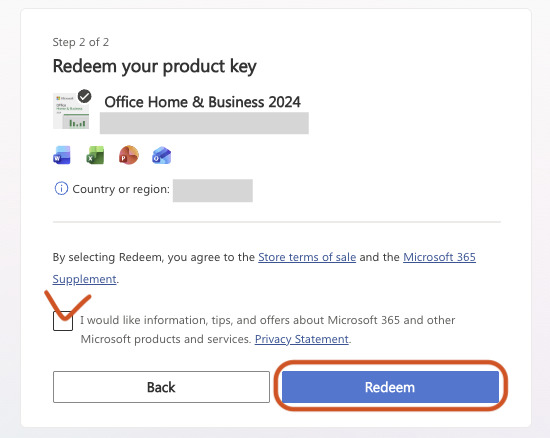
Step 6 — Redeem and confirm

Click Redeem, then Confirm. Your key is now bound to your Microsoft account — you’ll never need to type it again.

4 activate office bind key redeem

Part 2 — Download and install Office (Windows & Mac)

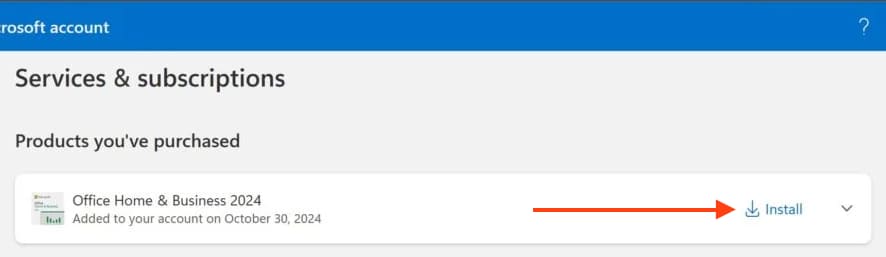
Download the installer

Download the Office installer from Microsoft’s official setup page at setup.office.com, signed in with the same account you used in Part 1. Your redeemed product appears there with an Install button.
6 activate office bind key redeem

On Windows

  1. Run the downloaded OfficeSetup.exe.
  2. The installer downloads and installs the full suite automatically — no choices needed.
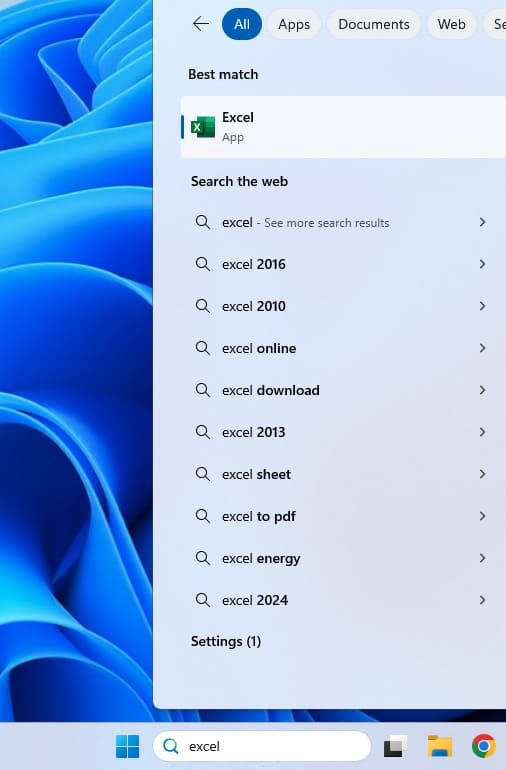
  3. When it finishes, you’ll find Word, Excel, PowerPoint and the rest in the Start menu.

On Mac

  1. Open the downloaded .pkg installer file.
  2. Follow the installation wizard and enter your Mac password when prompted.
  3. Once installed, Office apps appear in Launchpad and the Applications folder.

Part 3 — Activate Office by signing in

7 activate office bind key redeem
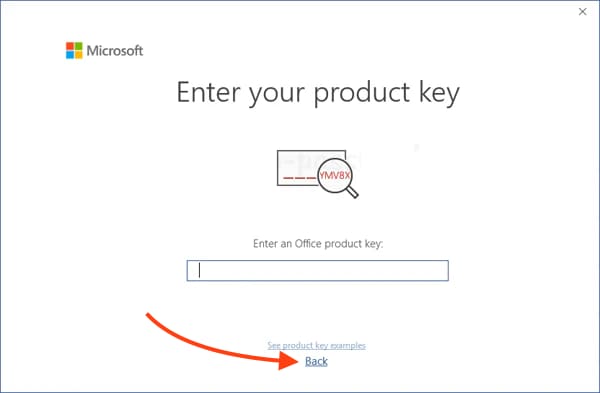
  1. Open any Office app — Excel or Word, for example.
  2. If you’re asked to enter a product key, click Back — you don’t need it, because the key is already bound to your account.
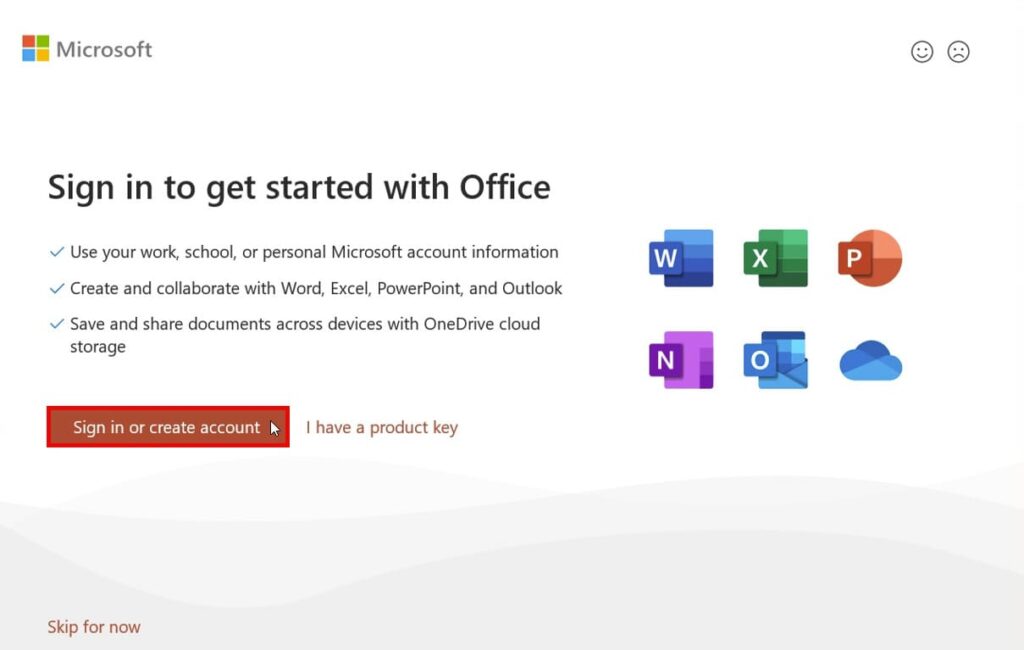
8 activate office bind key redeem


  1. In the window that appears, choose “Sign in or create an account”.
  2. Sign in with the Microsoft account the key was bound to in Part 1.
9 activate office bind key redeem
  1. Office activates automatically. Done — the suite is fully licensed on your device.

Always sign in with the same account you redeemed the key on. Signing in with a different Microsoft account is the number one cause of “unlicensed product” messages after installing with a bind key.

Get your Microsoft Office bind key

Genuine Office 2024, 2021 and 2019 product keys for Windows and Mac — instant email delivery, lifetime activation, no subscription.

Shop Office keys

Browser Our Products Cateregories

Our Best Selling Products

Your Cart (1)
Empty Cart Your Cart is Empty!

It looks like you haven't added any items to your cart yet.

Browse Products
Subtotal
Shipping & taxes calculated at checkout.
$9.99
Checkout Now