So, what’s the difference between Windows Home and Pro? The Windows 11 Home vs Pro question comes up before almost every PC purchase — and the honest answer is that for many people the cheaper edition is the right one, while for others a handful of Pro-only features are worth every cent. In this guide, we’ll compare Windows 11 Pro vs Home feature by feature — security, hardware limits, virtualization, remote access, gaming and performance — so you can decide which edition is right for you.
Quick answer: choose Windows 11 Home for everyday use, entertainment and gaming. Choose Windows 11 Pro if you need BitLocker encryption, Remote Desktop hosting, Hyper-V virtual machines, or company network (domain) features. Already on Home? A Home to Pro upgrade license unlocks everything without reinstalling.
In this guide
- Windows 11 Home vs Pro: comparison table
- How to check if you have Windows Home or Pro
- Security features
- CPU and RAM limits
- Virtualization: Hyper-V and Sandbox
- Remote Desktop and domain join
- Windows 11 Home vs Pro for gaming
- Which is faster? Performance and multitasking
- Should you get Windows 11 Home or Pro?
- How to upgrade from Home to Pro
- Frequently asked questions
Windows 11 Home vs Pro: comparison table
Here are the differences between Windows Home and Pro at a glance:
| Feature | Windows 11 Home | Windows 11 Pro |
|---|---|---|
| Interface, Start menu, Snap layouts, widgets | ✓ | ✓ |
| Windows Hello, Defender antivirus, firewall | ✓ | ✓ |
| DirectX 12, Auto HDR, DirectStorage (gaming) | ✓ | ✓ |
| BitLocker drive encryption | — | ✓ |
| Remote Desktop (host) | Client only | ✓ |
| Hyper-V virtual machines | — | ✓ |
| Windows Sandbox | — | ✓ |
| Group Policy Editor | — | ✓ |
| Active Directory / Azure AD domain join | — | ✓ |
| Kiosk mode (assigned access) | — | ✓ |
| Maximum RAM | 128 GB | 2 TB |
| CPU support | 1 CPU, 64 cores | 2 CPUs, 128 cores |
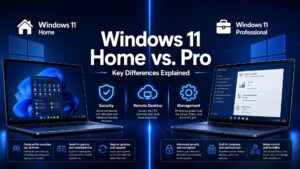
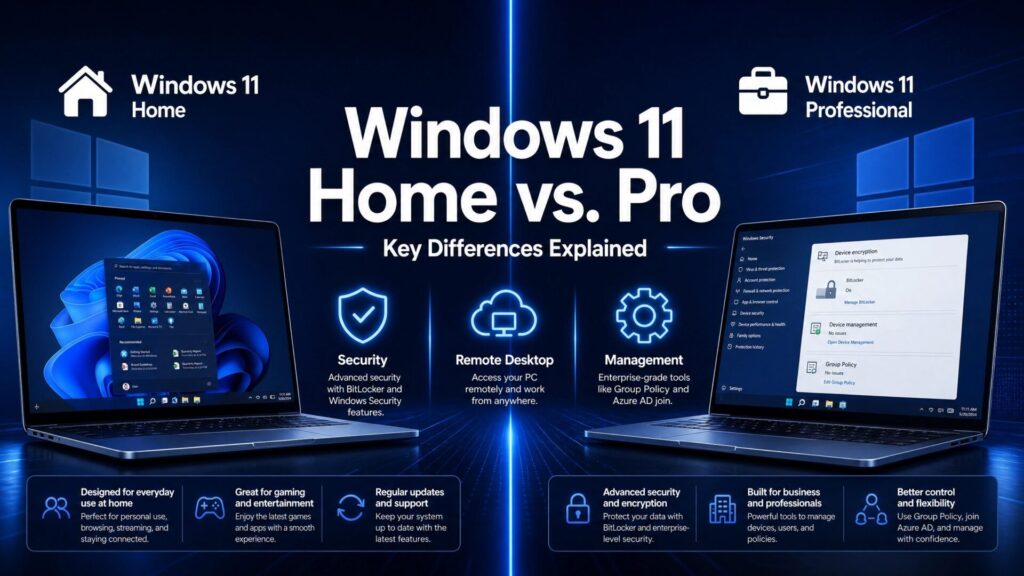
The pattern is clear: the everyday experience is identical, and every difference between Windows Pro and Windows Home sits in the security, virtualization and business-management layer. Microsoft’s own official edition comparison confirms the same list.
How to check if you have Windows Home or Pro
Not sure which edition your PC is running? It takes ten seconds:
- Press
Win + Ito open Settings. - Go to System → About.
- Under Windows specifications, the Edition line shows either “Windows 11 Home” or “Windows 11 Pro”.
Even faster: press Win + R, type winver, and hit Enter — the edition appears in the window that opens.
Security features: the biggest difference
Both editions include solid baseline protection — Microsoft Defender antivirus, firewall, Secure Boot, and Windows Hello biometric sign-in. What Windows 11 Pro adds on top:
- BitLocker drive encryption — full-disk encryption with management controls, so a stolen laptop doesn’t mean stolen data. Home offers basic device encryption on some hardware, but not full BitLocker.
- Windows Information Protection — guards against accidental leaks of business data.
- Microsoft Defender Application Guard — opens untrusted sites and files in an isolated container.
If your PC carries client data, financial records, or anything you’d worry about losing with the laptop bag — this section alone justifies Pro.
CPU and RAM limits
Minimum requirements are identical, but the ceilings differ: Windows 11 Home supports up to 128 GB of RAM and one CPU with 64 cores, while Pro handles up to 2 TB of RAM and two CPUs with 128 cores. For a normal desktop or laptop this never matters — it becomes relevant only for high-end workstations running heavy virtualization, rendering, or data workloads.
Virtualization: Hyper-V and Windows Sandbox
Windows 11 Pro includes two tools power users love:
- Hyper-V — Microsoft’s built-in hypervisor for running full virtual machines: Linux, older Windows versions, or test environments, all without extra software.
- Windows Sandbox — a disposable, isolated Windows session that resets when closed. Perfect for opening a suspicious file or testing an installer without any risk to your real system.
Home users can install third-party tools like VirtualBox, but there’s no built-in equivalent of Sandbox — and Hyper-V’s integration and performance are hard to match.
Remote Desktop and domain join
Two features decide the question for anyone working with an office network:
Remote Desktop: both editions can connect to other PCs, but only Pro can be connected to — it includes the Remote Desktop host. If you want to reach your own PC from elsewhere using Windows’ built-in RDP, that PC needs Pro. (Home users can fall back on third-party tools like TeamViewer or Chrome Remote Desktop.)
Domain join: on the Windows 11 Home vs Pro domain join question, it’s simple — Home cannot join an Active Directory or Azure AD domain at all. If your company manages PCs through a domain, or your IT department asks for “a Pro machine,” this is why. Group Policy, centralized updates and kiosk mode all live in Pro for the same reason.
Windows 11 Home vs Pro for gaming
Here’s the short version for gamers: there is no difference. Both editions include DirectX 12 Ultimate, Auto HDR, Game Mode and DirectStorage, and games run identically on the same hardware. If you’re building a gaming PC, buy Windows 11 Home, put the savings toward your GPU, and don’t look back — unless you also want Pro’s security or virtualization features for other reasons.
Which is faster? Performance and multitasking
A common search is “Windows 11 Home vs Pro — which is faster?” The answer: neither. Both editions share the same core operating system, kernel, and scheduler, so boot times, app performance and battery life are the same on identical hardware. Pro isn’t a “faster Windows” — it’s the same Windows with more features switched on.
The same goes for multitasking: there are no Windows 11 Home multitasking limitations vs Pro in everyday use. Snap layouts, virtual desktops, and window management are identical. The only “limit” Home has is the 128 GB RAM ceiling — which no multitasking session on a normal PC will ever approach.
Should you get Windows 11 Home or Pro?
| You are… | Best choice | Why |
|---|---|---|
| A home user — browsing, office work, streaming | Home | Everything you need, lower price |
| A gamer | Home | Gaming features are identical |
| A remote worker or freelancer with sensitive data | Pro | BitLocker + Remote Desktop hosting |
| An IT professional or developer | Pro | Hyper-V, Sandbox, Group Policy |
| A business with managed PCs | Pro | Domain join and centralized management |
And what about Windows 11 Pro for home use? It’s not wasted money if you’ll actually use BitLocker on a laptop that travels, or Sandbox to open files you don’t trust — plenty of careful home users choose Pro for exactly those two features. If none of the Pro column above made you nod, Home is the rational buy.
Whichever you choose, both editions are available at Flixeasy as genuine lifetime licenses with instant email delivery: Windows 11 Home key or Windows 11 Pro key — no subscription, activated directly on Microsoft’s servers.
How to upgrade from Windows 11 Home to Pro
Picked Home and changed your mind later? No reinstall needed — the upgrade happens in place and keeps all your files, apps and settings:
- Get a Windows 11 Home to Pro upgrade license — delivered by email within seconds.
- Open Settings → System → Activation.
- Click Change product key and enter the Pro key.
- Follow the prompts and restart when asked — your PC reboots as Windows 11 Pro with everything intact.
For the full walkthrough including troubleshooting, see our Windows 11 Pro download, install and activation guide.
Frequently asked questions
What is the difference between Windows Home and Windows Pro in one sentence?
They’re the same operating system, but Pro adds business-grade features: BitLocker encryption, Remote Desktop hosting, Hyper-V, Windows Sandbox, Group Policy and domain join.
Is Windows 11 Home or Pro better?
Neither is “better” — they target different users. Home is better value for personal use and gaming; Pro is better for work laptops, IT professionals, and business environments that need its extra security and management features.
Is Windows 11 Pro faster than Home?
No — performance is identical on the same hardware. Pro adds features, not speed.
Can Windows 11 Home join a domain?
No. Domain join (Active Directory and Azure AD) is Pro-only. If a PC needs to join a company network, it needs Pro.
Does Windows 11 Home have Remote Desktop?
Only as a client — it can connect to other PCs but cannot host incoming connections. To remote into a machine with Windows’ built-in RDP, that machine must run Pro.
Is Windows 11 Pro worth it for home use?
Only if you’ll use its specific features — BitLocker on a laptop that leaves the house, Hyper-V or Sandbox for tinkering. For browsing, office work and gaming, Home does everything Pro does.
Can I upgrade Windows 11 Home to Pro without losing my files?
Yes — entering a valid Pro key under Settings → System → Activation upgrades the edition in place. Files, apps and settings are all kept.
Can I downgrade from Pro to Home?
Not in place — switching from Pro down to Home requires a clean reinstall of Windows 11 Home. Back up your files first if you ever go that route.
Get your Windows 11 key
Genuine Windows 11 Home and Pro lifetime licenses with instant email delivery, no subscription — plus an in-place Home to Pro upgrade option.
Shop Windows 11 keys