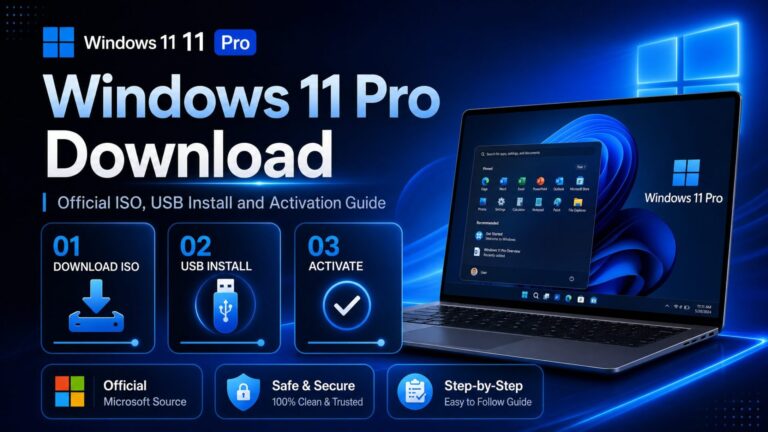
Need to download Windows 11 Pro safely? The safest way is to use Microsoft’s official Windows 11 ISO or Media Creation Tool, then install Windows 11 from a bootable USB — or upgrade from Windows 11 Home with a valid
Windows 11 Pro product key. This guide covers every path: the official
Windows 11 Pro download, creating installation media, a clean install, upgrading Home to Pro without losing data, and fixing the most common activation errors.
Quick answer: Download Windows 11 from Microsoft’s official page, create a USB installer with the Media Creation Tool, install Windows 11, then activate the Pro edition with a genuine
Windows 11 Pro product key.
Which Windows 11 Pro installation method should you use?
A clean install, an in-place upgrade, and a Home-to-Pro edition change are different paths. Pick yours before downloading anything:
| Your situation |
Best method |
Data loss risk |
| New PC or blank drive |
Clean install from USB (Method 3) |
High if files aren’t backed up |
| Windows 10 PC |
Upgrade in place or clean install |
Depends on method |
| Windows 11 Home PC |
Change the product key to Pro (Method 4) |
Low — files and apps stay |
| Can’t select Pro during setup |
ei.cfg fix, or upgrade after install |
Depends on install path |
| Activation error after install |
Troubleshooting steps below |
Low |
Windows 11 Pro Download system requirements
| Component |
Minimum specification |
| Processor |
1 GHz or faster, 2+ cores, compatible 64-bit CPU |
| RAM |
4 GB |
| Storage |
64 GB or larger |
| Firmware |
UEFI with Secure Boot support |
| TPM |
Trusted Platform Module 2.0 |
| Graphics |
DirectX 12 compatible with WDDM 2.0 driver |
| Display |
720p, larger than 9″, 8 bits per color channel |
Not sure if your PC qualifies? Microsoft’s free PC Health Check app confirms compatibility in one click.
Before you download Windows 11 Pro
- Back up your files. A clean installation removes apps, settings, and personal files.
- Prepare a blank USB drive with at least 8 GB of storage.
- Have your product key ready. You’ll need a valid Windows 11 Pro product key to activate — Flixeasy delivers keys by email within seconds.
- Check your current edition under Settings → System → About.
- Keep laptops plugged in for the whole installation.
Download Windows 11 only from Microsoft. Avoid unofficial ISO files, modified installers, and unknown third-party download links — they’re a leading source of malware.
Method 1 — Download the Windows 11 Pro ISO from Microsoft
The Windows 11 ISO is a multi-edition image: your product key decides whether Home or Pro installs. To get it:
- Go to Microsoft’s official Windows 11 download page.
- Scroll to Download Windows 11 Disk Image (ISO) for x64 devices.
- Choose your language and confirm.
- Download the 64-bit ISO (~5–6 GB) and save it somewhere easy to find.
You can mount the ISO directly for an in-place upgrade, or use it to build installation media for a clean install.
Method 2 — Create a Windows 11 Pro bootable USB
The simplest route is Microsoft’s own tool:
- Download the Windows 11 Media Creation Tool from Microsoft.
- Run it and accept the license terms.
- Select Create installation media for another PC.
- Choose language and edition, then USB flash drive.
- Pick your USB drive and let the tool download Windows 11 and build the bootable USB.
Prefer using the ISO you downloaded in Method 1 with Rufus instead? Follow our step-by-step guide to
create a bootable USB to install Windows — it covers the whole process with screenshots.
Method 3 — Clean install Windows 11 Pro
Best for a new PC, a blank drive, or a fresh start. Back up first — this path erases the target drive.
- Insert the bootable USB and restart the PC.
- Open the boot menu — commonly
F12, F2, Delete or Esc depending on the manufacturer.
- Select the USB drive as the boot device.
- Choose language, time and keyboard, then click Install now.
- Enter your Windows 11 Pro product key when prompted — or select I don’t have a product key to activate later.
- Select Windows 11 Pro if the edition screen appears.
- Choose Custom: Install Windows only.
- Pick the target drive or partition and let Setup run — the PC restarts several times.
After setup completes, connect to the internet and activate with your Pro key (see the
activation section).
Method 4 — Upgrade Windows 11 Home to Pro without losing data
Already on Windows 11 Home? No reinstall needed — changing the product key unlocks Pro features like BitLocker, Remote Desktop, Hyper-V, and Group Policy while keeping your files and apps in place.
- Save your work and close open apps.
- Open Settings → System → Activation.
- Select Change product key.
- Enter your Windows 11 Pro product key — Flixeasy sells a dedicated Windows 11 Home to Pro upgrade license for exactly this.
- Follow the prompts and restart when asked.
- Confirm activation under Settings → System → Activation.
If Windows won’t accept your Pro key straight away, change the edition first with Microsoft’s generic upgrade key (this is not an activation key): VK7JG-NPHTM-C97JM-9MPGT-3V66T. Once the edition switches to Pro, enter your genuine key to activate.
Can’t select Windows 11 Pro Download during installation?
If Setup skips the edition screen and installs Home automatically, your PC has a Home license embedded in its UEFI firmware. Two ways around it: install Home and upgrade afterwards (Method 4), or force the edition menu with an
ei.cfg file:
- Open Notepad and add these lines:
[Channel]
Retail
[VL]
0
- Click File → Save As, name it
ei.cfg, and set Save as type to All Files.
- Save it into the
\sources folder on your installation USB.
- Restart the installation — the edition selection screen should now appear.
How to activate Windows 11 Pro
- Open Settings → System → Activation.
- Select Change product key.
- Enter your 25-character Windows 11 Pro product key.
- Click Next and follow the prompts — activation completes online in seconds.
Don’t have a key yet? Every
Windows 11 product key from Flixeasy is genuine, activates directly on Microsoft’s servers, and comes with lifetime activation — delivered to your inbox within seconds of purchase.
Fix Windows 11 Pro installation and activation errors
| Problem |
Likely cause |
Fast fix |
| Can’t select Windows 11 Pro |
Embedded Home license detected |
Use ei.cfg, or upgrade after install |
| Error 0xc004f050 |
Key doesn’t match installed edition |
Upgrade edition first, then activate |
| Error 0xc004c060 |
Key blocked or activation conflict |
Remove old key, re-activate (below) |
| TPM 2.0 not detected |
TPM disabled in firmware |
Enable TPM 2.0 in BIOS/UEFI |
| Secure Boot issue |
Legacy BIOS mode |
Switch to UEFI and enable Secure Boot |
| USB won’t boot |
Wrong boot order or faulty media |
Recreate the USB, pick it in the boot menu |
Fix error 0xc004f050 (edition mismatch)
- Disconnect from the internet.
- Go to Settings → System → Activation → Change product key.
- Enter the generic upgrade key:
VK7JG-NPHTM-C97JM-9MPGT-3V66T
- Restart after the edition upgrade completes.
- Reconnect to the internet and enter your genuine Pro key to activate.
Fix error 0xc004c060 (activation conflict)
Run Command Prompt as administrator (
Win + S → type
cmd → right-click → Run as administrator), then:
- Remove the existing key:
slmgr /upk
- Clear it from the registry:
slmgr /cpky
- Install your new key:
slmgr /ipk YOUR-PRODUCT-KEY
- Activate online:
slmgr /ato
- Check activation status:
slmgr /dlv
Frequently asked questions
Where can I download Windows 11 Pro?
Only from Microsoft’s official Windows 11 download page, which offers the Installation Assistant, the Media Creation Tool, and the ISO file. The download is the same for all editions — your product key unlocks Pro.
Can I start Windows 11 Pro Download for free?
Yes — Microsoft provides the installation files free of charge. The download doesn’t include a license though: you need a valid Windows 11 Pro product key to activate it.
Can I install Windows 11 Pro without a product key?
Yes. Choose
I don’t have a product key during setup and Windows installs unactivated. Add your key later under Settings → System → Activation.
Will upgrading from Home to Pro delete my files?
No — changing the product key keeps your files, apps and settings. A backup beforehand is still good practice.
Why did Windows install Home instead of Pro?
Your PC has a Home key embedded in its firmware, which Setup detects automatically. Either use the ei.cfg method to force the edition menu, or install Home and upgrade with a Pro key afterwards.
Why is my Windows 11 Pro product key not working?
Usually an edition mismatch (Home installed, Pro key entered), a typo, or the key is already in use on another device. Check the installed edition first, then re-enter the key carefully. Flixeasy keys come with support and a money-back guarantee if activation ever fails.
Get your Windows 11 Pro product key
Genuine Windows 11 Pro license with instant email delivery, lifetime activation and no subscription — activates directly on Microsoft’s servers.
Buy Windows 11 Pro key