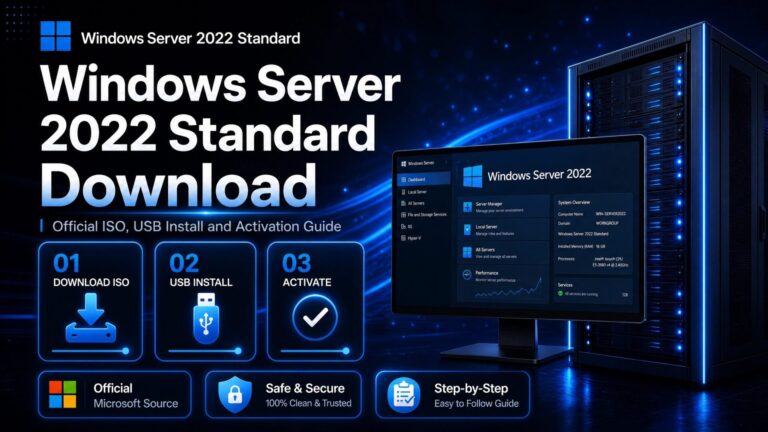
Setting up a server operating system might sound daunting, but the Windows Server 2022 Standard download, installation, and activation process is straightforward when you follow the right steps. This guide walks you through everything: checking system requirements, downloading the ISO, creating installation media, installing the OS, and activating it with your product key — plus how to convert the 180-day evaluation version to a full license if you’ve already installed it.
Already have your key? If you purchased from Flixeasy, your delivery email includes both your Windows Server 2022 Standard product key and a download link for the installation ISO — you can use that link directly and skip to the installation step. Don’t have a key yet? Get one from our Windows Server 2022 keys page with instant email delivery.
Step 1 — Check the system requirements
Windows Server 2022 Standard has modest minimum requirements, but plan for more if you’ll be running roles like Hyper-V, file services, or Active Directory:
| Component | Minimum requirement |
|---|
| Processor | 1.4 GHz 64-bit processor, compatible with x64 instruction set |
| RAM | 512 MB minimum (2 GB+ recommended, ECC for production) |
| Storage | 32 GB minimum free space |
| Network | Gigabit Ethernet adapter (10/100/1000 BASE-T) |
| Display | Super VGA (1024×768) or higher |
These are minimums for the OS itself — for any real workload, size the hardware to the roles you plan to deploy.
Step 2 — Windows Server 2022 Standard Download
You have two options for the Windows Server 2022 ISO download:
- Flixeasy customers: use the download link included in your product key delivery email — it takes you straight to the correct installation image for your license.
- From Microsoft: go to the official Windows Server 2022 download page, scroll to Get started for free, choose Download the ISO, and complete the short form. Note that this page provides the 180-day evaluation version — easily converted to the full version with your product key after installation.
The ISO file contains the complete installer, but you can’t just copy it onto a USB stick — it needs to be written as bootable media. You’ll need a USB drive of at least 8 GB (everything on it will be erased).
The easiest tool for the job is Rufus — follow our step-by-step guide to create a bootable USB to install Windows; the process is identical for Windows Server. Select the Server 2022 ISO, keep the default GPT/UEFI settings, and click Start.
Installing on a virtual machine (Hyper-V, VMware, VirtualBox, Proxmox)? Skip the USB entirely — attach the ISO file directly to the VM as a virtual DVD drive and boot from it.
Step 4 — Install Windows Server 2022 Standard
- Plug the bootable USB into the server and power it on.
- Open the boot menu or BIOS/UEFI settings (commonly
F2, F11, F12 or Delete) and boot from the USB drive. - Select your language, region, and keyboard layout, then click Install now.
- When asked to choose an edition, select Windows Server 2022 Standard (Desktop Experience) — unless you specifically want the command-line-only Server Core installation.
- Accept the license terms and choose Custom: Install Windows only for a clean installation.
- Select the target drive or partition and click Next.
- Wait while files are copied — the server restarts several times.
- Set a strong Administrator password when prompted, and you’ll land on the desktop.
After installation: run Windows Update, install your hardware drivers, and configure basic security settings before deploying any roles through the Add Roles and Features Wizard in Server Manager.
Step 5 — Activate Windows Server 2022 Standard
Now activate with your genuine product key — the one from your Flixeasy delivery email:
- Type
cmd in the search bar, right-click Command Prompt, and select Run as administrator. - Install your product key (replace the Xs with your 25-character key):
slmgr /ipk XXXXX-XXXXX-XXXXX-XXXXX-XXXXX
- Activate online:
slmgr /ato
- Verify activation:
slmgr /dlv
The license status should read Licensed — permanent, with no expiry date.
Installed the evaluation version? Convert it to the full version
If you downloaded the ISO from Microsoft’s page and your installation shows a 180-day time limit, you don’t need to reinstall anything. The evaluation converts to the full edition in place using your product key:
- Open Command Prompt as administrator.
- Optionally, confirm the available target edition:
DISM /online /Get-TargetEditions
- Run the edition conversion with your product key:
DISM /online /Set-Edition:ServerStandard /ProductKey:XXXXX-XXXXX-XXXXX-XXXXX-XXXXX /AcceptEula
- The server reboots twice to complete the conversion.
- Afterwards, verify with
slmgr /dlv — the 180-day countdown is gone and your server is fully licensed.
Run the conversion before promoting the server to a domain controller — DISM cannot change the edition of a domain controller. If it’s already a DC, demote it, convert, then promote again.
Frequently asked questions
How do I get Windows Server 2022 Standard?
Buy a genuine Windows Server 2022 Standard product key from Flixeasy — it arrives by email within seconds together with a download link for the installation ISO, and the license is a one-time purchase with lifetime activation.
Can I get Windows Server 2022 Standard for free?
Not permanently. Microsoft offers a free 180-day evaluation for testing, plus virtual labs for training. For production use you need a valid license — though as shown above, the evaluation converts directly to the full version once you have a key.
Is there a free trial of Windows Server 2022?
Yes — the 180-day evaluation from Microsoft’s official download page. It’s fully functional and converts to the licensed version with the DISM command, so nothing you set up during the trial is lost.
Can I install Windows Server 2022 Standard on a virtual machine?
Yes — Hyper-V, VMware vSphere, VirtualBox, and Proxmox all support it. Attach the ISO to the VM as a virtual DVD and install normally. Standard edition licensing covers up to two virtual machines on licensed hardware.
What’s the difference between Standard and Datacenter?
The main difference is virtualization rights: Standard covers two VMs, Datacenter allows unlimited VMs plus features like Storage Spaces Direct and Software-Defined Networking. For most small and mid-size deployments, Standard is the cost-effective choice.
Get your Windows Server 2022 Standard key
Genuine license with instant email delivery, ISO download link included, lifetime activation and no subscription.
Shop Windows Server 2022 keys