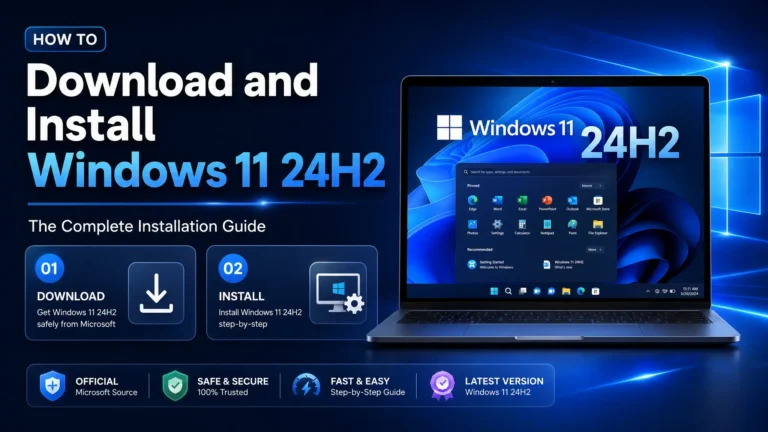
The Windows 11 24H2 download feature update is the biggest release Microsoft has shipped for Windows 11 so far — a full feature pack built on a new platform foundation, with performance improvements, better power management and new security features. In this guide, we’ll walk through every deployment method available: automatic delivery through Windows Update, a manual Windows 24H2 download, ISO-based offline installation, and enterprise-scale rollout. Whether you’re updating one laptop or deploying to a whole fleet, this is the complete playbook.
What is the Windows 11 24H2 feature pack?
Windows 11 24H2 (also called the Windows 11 2024 Update) is a full feature update rather than a small cumulative patch. It moves Windows 11 onto the Germanium platform release, which brings faster startup, improved sleep and battery behaviour, Wi-Fi 7 support, Sudo for Windows, HDR background support and stronger security defaults such as SMB signing and local session manager hardening. Because it’s a feature pack, deploying it works more like an in-place upgrade than a normal monthly update — which is why choosing the right deployment method matters.
Every method below results in the same build, so pick the one that fits your situation: Windows Update for a single PC with no hurry, the Installation Assistant to force the update now, the Media Creation Tool or ISO for offline installs and multiple machines, and WSUS or Intune for managed environments.
System requirements for Windows 11 24H2
The baseline hardware requirements are unchanged from previous Windows 11 versions, with one notable exception: 24H2 requires a CPU that supports the POPCNT and SSE4.2 instructions, which quietly drops some very old processors The full list is on Microsoft’s Windows 11 specifications page
| Component | Minimum requirement |
|---|
| Processor | 1 GHz, 2+ cores, 64-bit, on Microsoft’s supported CPU list (POPCNT/SSE4.2 required) |
| RAM | 4 GB |
| Storage | 64 GB (keep 20+ GB free for the update itself) |
| Firmware | UEFI with Secure Boot capability |
| TPM | Trusted Platform Module 2.0 |
| Graphics | DirectX 12 compatible with WDDM 2.0 driver |
If you’re moving up from Windows 10 rather than an earlier Windows 11 build, you’ll also need a valid license — you can get a genuine Windows 11 24H2 product key from Flixeasy with instant email delivery and lifetime activation.
Before you deploy: a 5-minute checklist
- Back up your data. In-place upgrades are reliable, but a feature pack replaces core OS components — a backup costs minutes, a failed upgrade without one costs days.
- Update drivers first. Most 24H2 upgrade failures trace back to outdated storage, GPU or audio drivers. Update them from Windows Update or the manufacturer’s site.
- Free up disk space. Aim for at least 20 GB free on the system drive.
- Temporarily disable third-party antivirus. Security tools that hook deep into the OS are a common cause of rollback during feature updates.
- Note your license state. Run
slmgr /xpr to confirm Windows is permanently activated before upgrading, so activation carries over cleanly.
Method 1 — Windows Update (easiest)
For a single up-to-date PC, the simplest path is built in:
- Open Settings → Windows Update.
- Turn on “Get the latest updates as soon as they’re available”.
- Click Check for updates. When your device is eligible, you’ll see “Windows 11, version 24H2 is available” with a Download & install button.
- Install, restart, and Windows completes the feature pack deployment automatically.
The catch: Microsoft rolls 24H2 out in phases, so the offer may not appear immediately on every machine. If you don’t want to wait, use one of the manual methods below.
Method 2 — Installation Assistant (force the update now)
The Windows 11 Installation Assistant is the fastest way to download the Windows 11 24H2 update manually on a PC that’s already running Windows 11:
- Go to Microsoft’s official Download Windows 11 page.
- Under Windows 11 Installation Assistant, click Download now.
- Run the tool — it verifies compatibility, downloads 24H2 in the background, and prompts for a restart when ready.
Your files, apps and settings stay in place. This method skips the phased rollout entirely.
The Media Creation Tool for the Windows 11 24H2 download is the right choice when you need to update several PCs or create a bootable USB drive:
- Download the Media Creation Tool from Microsoft’s Download Windows 11 page.
- Run it and accept the license terms.
- Choose Create installation media (USB flash drive, DVD, or ISO file).
- Select language and edition, then pick a USB drive (8 GB minimum) or ISO output.
- To upgrade in place, run
setup.exe from the finished USB on each target PC and choose Keep personal files and apps. To clean-install, boot from the USB instead — see our full guide on creating a bootable USB to install Windows.
Method 4 — Windows 11 24H2 ISO download (offline installer)
For full control — virtual machines, deployment shares, or a true Windows 11 24H2 offline installer — download the ISO file directly:
- On Microsoft’s Download Windows 11 page, scroll to Download Windows 11 Disk Image (ISO) for x64 devices.
- Select Windows 11 (multi-edition ISO) — this single image covers Home and Pro, so it also serves as the Windows 11 Pro 24H2 ISO download.
- Choose your product language and confirm. Microsoft publishes the ISO in every supported language, including English, Spanish and Portuguese (Brazilian) 64-bit builds.
- Download the ~5–6 GB file, then either mount it in File Explorer and run
setup.exe for an in-place upgrade, or write it to USB with the Media Creation Tool or Rufus for a clean install.
The edition that installs is determined by your product key. If you’re building a new PC or moving from Home to Pro during the reinstall, you can buy a genuine Windows 11 24H2 Pro key at Flixeasy for a fraction of retail price — it arrives by email within seconds, so it fits neatly into the middle of an install.
Method 5 — Enterprise deployment (WSUS & Intune)
In managed environments, deploy the 24H2 feature pack the same way you’d handle any feature update:
- WSUS / Configuration Manager: synchronise the Upgrades classification, approve “Windows 11, version 24H2” for a pilot ring first, then broaden deployment ring by ring.
- Intune / Windows Update for Business: create a Feature updates for Windows 10 and later policy targeting version 24H2, assign it to a pilot group, and use update rings to control deferral and deadline behaviour.
- Volume licensing: for servers and multi-seat deployments, Flixeasy also supplies volume and bulk license keys — see the contact page for custom orders.
A pilot ring of 5–10% of devices for two weeks catches driver and app-compatibility issues before they reach the whole fleet.
Fixing a broken install: the 24H2 repair version
If a PC already on 24H2 misbehaves — broken updates, missing system files, performance problems — you don’t need to wipe it. What people search for as the Windows 11 version 24H2 repair version download is simply the same 24H2 ISO used as a repair install:
- Download the 24H2 ISO (Method 4) — the version must match or be newer than the installed build.
- Mount the ISO and run
setup.exe from inside Windows. - Choose Keep personal files and apps.
- Windows reinstalls every system file in place, repairing the OS without touching your data or programs.
This “in-place repair upgrade” fixes the vast majority of system corruption issues and keeps activation intact.
Frequently asked questions
Is there a Windows 10 24H2 download?
No. Windows 10’s final version is 22H2 — there is no Windows 10 24H2. If you’re searching for it, what you actually want is the Windows 11 24H2 upgrade, and since Windows 10 support has ended, upgrading is strongly recommended. All you need is eligible hardware and a Windows 11 24H2 license key.
Is the Windows 11 24H2 download free?
The update itself is free for any activated Windows 11 or eligible Windows 10 PC. You only need to buy a license if the machine has no valid Windows license — for example a self-built PC or a clean install on new hardware.
How long does the 24H2 feature pack deployment take?
On an SSD, expect roughly 30–60 minutes total: the download happens in the background, and the offline phase after restart typically takes 15–30 minutes.
Can I go back after installing 24H2?
Yes — for 10 days after upgrading, Settings → System → Recovery offers Go back, which restores the previous version with your files intact.
Where do I find a Windows 11 24H2 ISO in my language?
Microsoft’s official ISO page lists every supported language, including Portuguese (Brazil) 64-bit — always download from Microsoft directly rather than third-party mirrors, both for safety and for a clean SHA-256-verifiable image.
Ready to deploy Windows 11 24H2?
Get a genuine Windows 11 product key with instant email delivery, lifetime activation and no subscription — activate directly on Microsoft’s servers.
Shop Windows 11 keys