⚡ Instant Delivery — Genuine Microsoft Product Keys Emailed in Seconds

Volume Licences | Bulk orders

How to Download, Install, and Activate Visio 2021 Professional

Microsoft Visio 2021 Professional is the standalone version of Microsoft’s powerful diagramming and visualization software for Windows — a one-time purchase with no subscription, designed for creating professional flowcharts, organizational charts, network diagrams, floor plans, and other detailed visual representations.

In this guide, we’ll walk through the complete Visio 2021 download, installation, and activation process on Windows, including what to do if online activation shows an error.

Purchased from Flixeasy? Everything is in your inbox — the download link and these steps are sent again in the delivery email, so you can set up directly from there. Don’t have a key yet? Get a genuine Microsoft Visio product key with instant email delivery and lifetime activation.

System requirements


RequirementDetails
Operating systemWindows 10 or Windows 11
Processor1.6 GHz or faster, dual-core
RAM4 GB (64-bit) or 2 GB (32-bit)
Disk space4 GB of available space
Display1280 × 768 resolution

Step 1 — Download Visio 2021 Professional

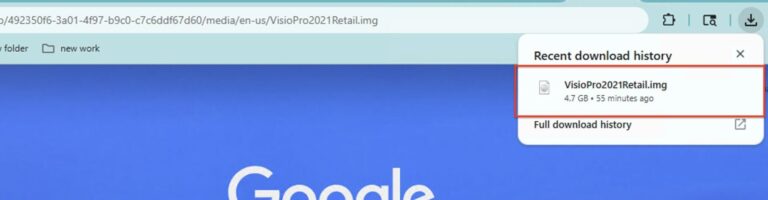
Use the download link we share with you in your delivery email — it downloads the complete Visio 2021 Professional installation package as a .img file. This is a disk image containing the full installer, so no sign-in and no additional downloads are needed.

Microsoft Visio 2021 Download: How to Install & Activate on Windows 1

Step 2 — Open the .img file and install

A .img file works like a virtual DVD — Windows 10 and 11 open it natively, no extra software needed:
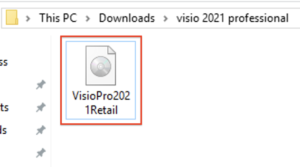
  1. Locate the downloaded .img file in your Downloads folder.
Microsoft Visio 2021 Download: How to Install & Activate on Windows 2
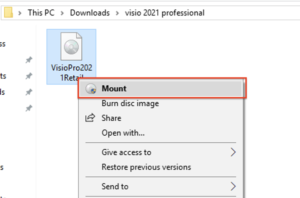
  1. Double-click it (or right-click → Mount). Windows mounts it as a virtual drive, which appears in File Explorer under “This PC”.
Microsoft Visio 2021 Download: How to Install & Activate on Windows 3
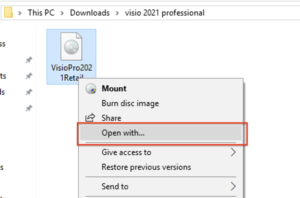
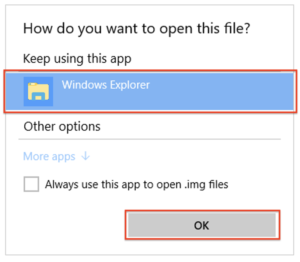
If double-clicking opens the file in another program instead of mounting it, right-click the .img file → Open with → Windows Explorer.
Microsoft Visio 2021 Download: How to Install & Activate on Windows 4
Microsoft Visio 2021 Download: How to Install & Activate on Windows 5
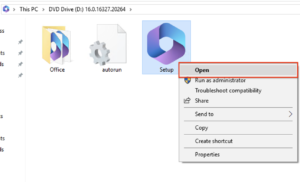
  1. Open the mounted drive and run Setup.exe click on Open or (right-click → Run as administrator for a smooth install).
Microsoft Visio 2021 Download: How to Install & Activate on Windows 6
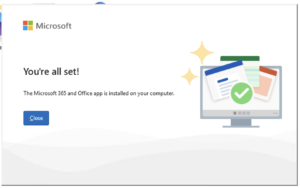
  1. Accept the license terms and follow the prompts — installation takes a few minutes.
Microsoft Visio 2021 Download: How to Install & Activate on Windows 7
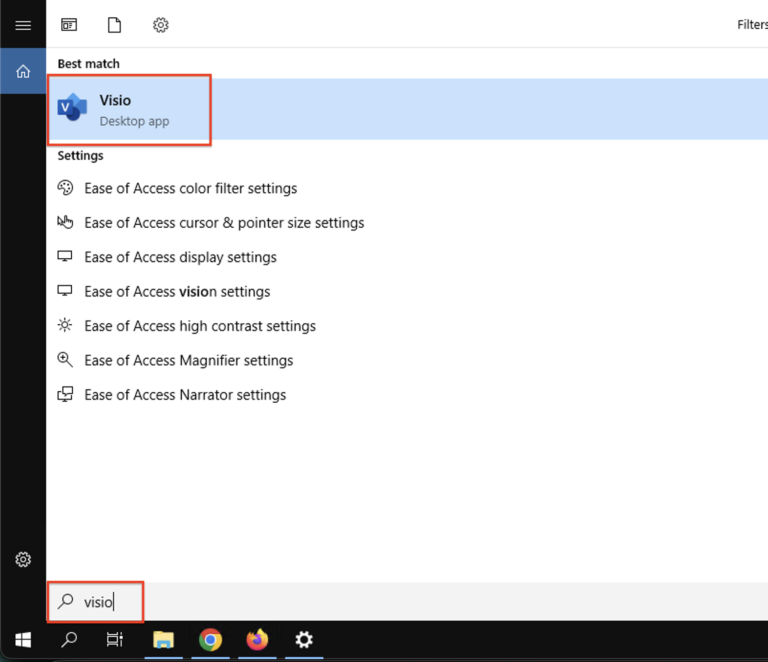
  1. When it completes, find Visio in your Start menu. You can then right-click the virtual drive in File Explorer and select Eject to unmount the image.

Step 3 — Activate with your product key

  1. Launch Visio 2021 from the Start menu.
Microsoft Visio 2021 Download: How to Install & Activate on Windows 8
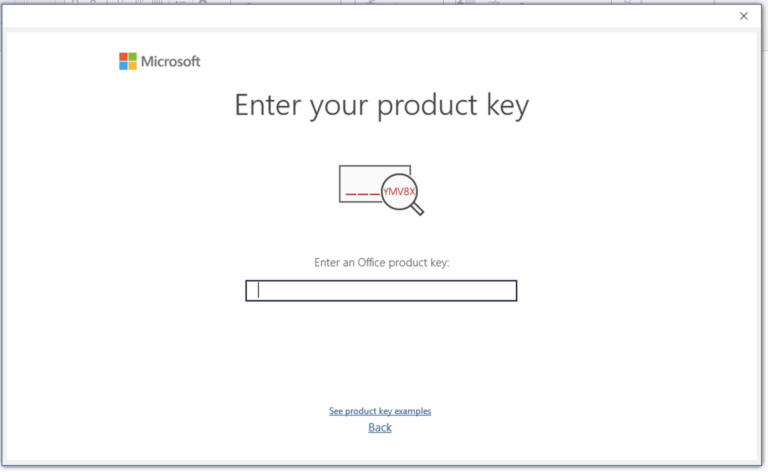
  1. When prompted, enter the 25-character product key from your Flixeasy delivery email.
Microsoft Visio 2021 Download: How to Install & Activate on Windows 9
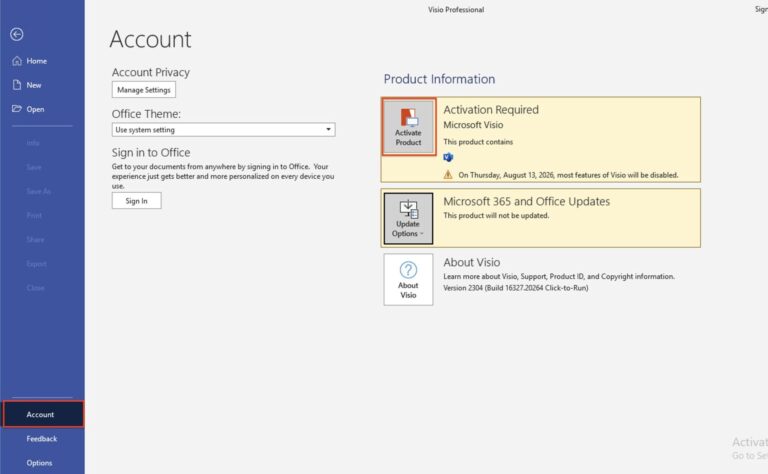
  1. If online activation succeeds, you’re done — add your email accounts and start using Visio, If you closed the prompt, you can click the “File” button in the top-left corner of the screen.
Microsoft Visio 2021 Download: How to Install & Activate on Windows 10
  1. Click on “Account
  2. Then click on “Activate Product” The activation prompt will appear again.
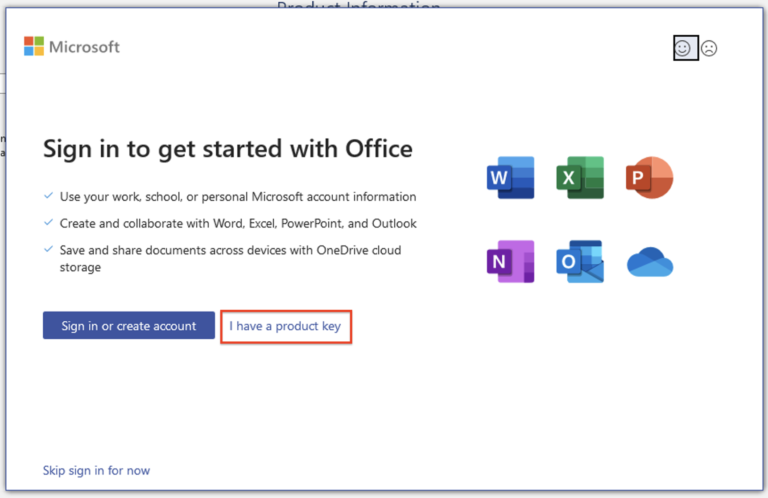
  3. Then select “I have a product key.”

Activation error? Activate by telephone

  1. In the Activation Wizard, select “I want to activate the software by telephone” and click Next.
  2. The wizard displays your Installation ID. To get your Confirmation ID, use our free tool: Get Confirmation ID.
  3. On that page, paste your Installation ID into the Installation ID field and enter your Tempcode (shown next to your product key in the delivery email).
  4. Click Get CID and copy the Confirmation ID you receive into the wizard’s Confirmation ID fields.
  5. Click Next — the wizard confirms successful activation, and Visio 2021 Professional is fully licensed.
If the telephone activation process is not clear, you can find a demonstration of this step in “Step 4 — Activate with Your Product Key” in our Office 2021 Professional Plus Activation Guide

Frequently asked questions

Is Visio 2021 Professional a one-time purchase?

Yes — a perpetual license for 1 PC. Pay once, use it for life, no subscription or renewal fees.

What is a .img file and is it safe?

A .img file is a disk image — the same format Microsoft uses to distribute Office installers. Windows 10 and 11 mount it natively as a virtual DVD; you install directly from it and eject it afterwards. Downloaded from your delivery link, it’s the complete official installer.

Do I need a Microsoft account?

No — Visio 2021 activates with your product key directly, including fully offline via the telephone method. No account sign-in is required at any point.

Does Visio 2021 include Word and Excel?

No — it’s the standalone Visio app. For the full suite, an Office 2021 product key includes Outlook alongside Word, Excel, PowerPoint and more.

Can I reinstall Visio 2021 later?

Yes — keep your delivery email. Download the .img from the same link, reinstall. For reactivation, you will need to purchase a new product key. If you need any assistance, our support team is always ready to help and responds quickly.

Does it work with Gmail and other providers?

Yes — Visio 2021 supports Outlook.com, Gmail, Yahoo, iCloud, and any standard IMAP/POP or Exchange account.

Get your Microsoft Visio 2021 key

Genuine product key with instant email delivery — download link and installation steps included in every order. One-time purchase, lifetime activation. Buy Visio product key

Browser Our Products Cateregories

Our Best Selling Products

Your Cart (0)
Empty Cart Your Cart is Empty!

It looks like you haven't added any items to your cart yet.

Browse Products
Subtotal
Shipping & taxes calculated at checkout.
$0.00
Checkout Now